FROM THE SHACK OF G1CEC
HamPilot.
Your window
on HF.
A little screen with a world of radio on it. DX spots, observed propagation and the time where it matters—right beside your rig.
Prefer a ready-built display?ESP32 touchscreen · Wi-Fi connected · Made by Chris Raynerd
A SMALL ADDITION TO YOUR SHACK
More awareness.
Less screen juggling.
Keep useful radio information in sight while you get on with operating. HamPilot puts online reports, a world map, time and an HF outlook on a dedicated display.
It connects to your Wi-Fi and can cycle through its pages automatically. Once configured, power it from USB and give it a place on the bench.
Read the full project & setup guideTAKE A CLOSER LOOK
A view for every moment.
Explore two real captures from the display.
See where the reports are coming from.
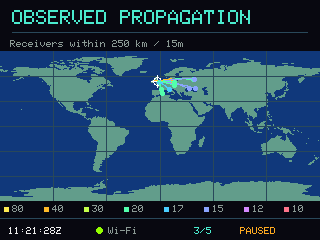
Recent PSK reports from receivers near your chosen location, with band colours and a world map showing the day/night boundary and the Sun’s position.
Useful details. A quick glance away.
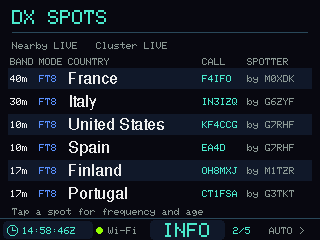
A six-row DX spot list brings together countries, callsigns, bands and colour-coded modes. Tap a row on the touchscreen for the spot details.
The screenshots are recorded examples, not a live feed on this webpage.
Observed reports describe what other receivers are hearing. They do not measure your antenna, and an absence of reports does not necessarily mean a band is closed.
MORE THAN A MAP
Keep the essentials
in your eyeline.
A clock for the shack
UTC, local time, sunrise and sunset—without reaching for another window.
The wider HF picture
HamQSL’s HF outlook, solar figures and contest/DXpedition information alongside the reports.
Make it your station
Set your callsign, Maidenhead locator, place and page timings through the display’s settings.
THE HARDWARE
One little board.
A useful new companion.
HamPilot runs on the Diymore 2.8-inch ESP32-32E touchscreen board. With the supported board, there is no extra wiring to add.
Bring a USB data cable, a desktop computer for installation and a 2.4 GHz Wi-Fi network with internet access.
- Processor
- ESP32-32E
- Display
- 2.8-inch · 320 × 240
- LCD controller
- ILI9341 / ILI9341V
- Touch
- XPT2046 resistive
- Flash
- 4 MB
- Network
- 2.4 GHz Wi-Fi
Similar-looking CYD boards can have different wiring or displays. Check these details before installing.
FROM YOUR BROWSER TO THE BENCH
Give your display
a new purpose.
Use desktop Chrome or Edge with a USB data cable.
The installer will ask you to choose your board’s port.
- 01
Check the board
Match the Diymore hardware details above.
- 02
Connect & install
Plug in USB, then use the installer below.
- 03
Make it yours
Calibrate touch, add Wi-Fi and set your station.
Install Ham Pilot
VERSION 0.3.5Confirm your board to open the installer. You will choose its USB port before anything is written.
Updating HamPilot? Leave “Erase device” unchecked to keep saved station details, Wi-Fi and touch calibration. Installing replaces the firmware on the board; back up another project before replacing it.
FROM MY BENCH TO YOUR SHACK
Prefer a ready-built HamPilot?
Ask Chris about a ready-built display, including availability, pricing and postage.
Do I need to leave a computer connected?
No. A computer is needed for installation. Once configured, HamPilot uses Wi-Fi for its reports and time, and you can power the display from a suitable USB supply.
Does it connect to or control my radio?
HamPilot is a companion display for online reports and time. There is no CAT connection, and it does not control your radio. ADIF import and DXCC logbook analysis are not included in this firmware.
What happens on the first start?
A fresh installation asks you to calibrate touch using three targets. Add your Wi-Fi, callsign, locator and place in Settings, save, and allow time for the first reports to arrive. The full setup guide explains the display controls and local browser setup.
What if the installer cannot find my display?
Check that your USB cable carries data, close other software using the serial port and use desktop Chrome or Edge. The manual instructions cover drivers, BOOT/RESET and a slower upload option.
Where can I find the licence and project notes?
The application uses PolyForm Noncommercial 1.0.0; third-party components retain their own licences. Open the files and licence section for notices, matching sources and relinking materials, or visit the public project documentation.